
How to Flash iOS
How to Flash iOS 4.0 – iOS 18 Using 3uTools (2025 Updated Guide)
3uTools is a powerful iOS management tool widely used to flash, restore, and manage iPhones, iPads, and iPods.
This updated 2025 guide explains how to flash older iOS versions (iOS 4.0 to iOS 11) using Easy Flash Mode, while also clearly covering latest iPhone models like iPhone 15 series and new iOS versions (iOS 17 & iOS 18) to avoid user confusion.
Latest iPhone Models Supported by 3uTools (2025)
The latest 2025 version of 3uTools supports detection and management of modern Apple devices, including:
- iPhone 17 / 17 Plus / 17 Pro / 17 Pro Max
- iPhone 16 / 16 Plus / 16 Pro / 16 Pro Max
- iPhone 15 / 15 Plus / 15 Pro / 15 Pro Max
- iPhone 14 / 14 Plus / 14 Pro / 14 Pro Max
- iPhone 13 / 12 / 11 series
- iPad Pro (M1 & M2)
- iPad Air (5th generation)
- iPad mini (6th generation)
With newer iPhones, 3uTools can be used for:
- iOS restore & update
- Backup and data management
- Flashing Apple-signed firmware
- Device diagnostics and information
Important Notes Before Flashing iOS
Before you start flashing, carefully read the following:
- Always Backup Your Data
Create a full backup using iTunes or 3uTools.
If supported by the firmware, you may enable “Retain User’s Data While Flashing” to keep your data. - Remember Your Apple ID & iCloud Password
After flashing, device activation requires your Apple ID.
If you forget your iCloud credentials, the device may be locked due to Activation Lock. - Limitations on Latest iOS Versions
iOS 17 and iOS 18 devices cannot be downgraded to unsigned firmware.
Flashing is only possible with Apple-signed iOS versions.
Step-by-Step Guide: Flash iOS Using 3uTools (Easy Flash Mode)
Step 1.Ensure you have installed the iTunes on your computer, and then download the latest version of 3uTools.
Step 2. Click Flash Jailbreak→Easy flash, check the box of the available firmware you want, and then click Download.
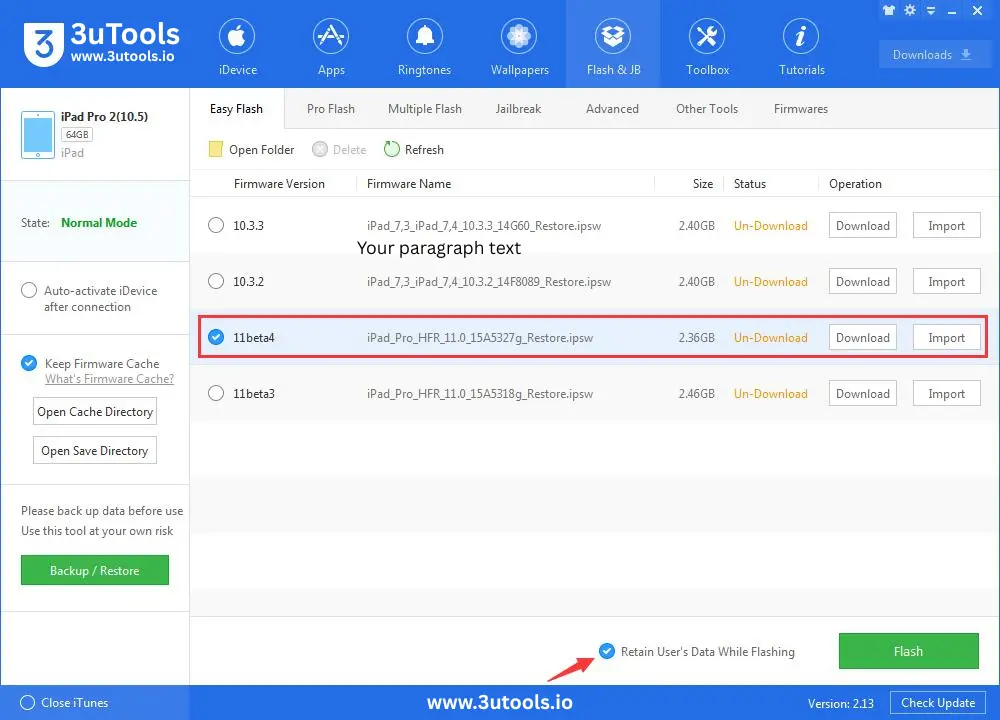
Step 3: Click “Flash & JB” -> “Easy Flash”, then select the firmware iOS 11 Beta 4 as the following picture. (If you want to save your data, please select the option “Retain User’s Data While Flashing”)
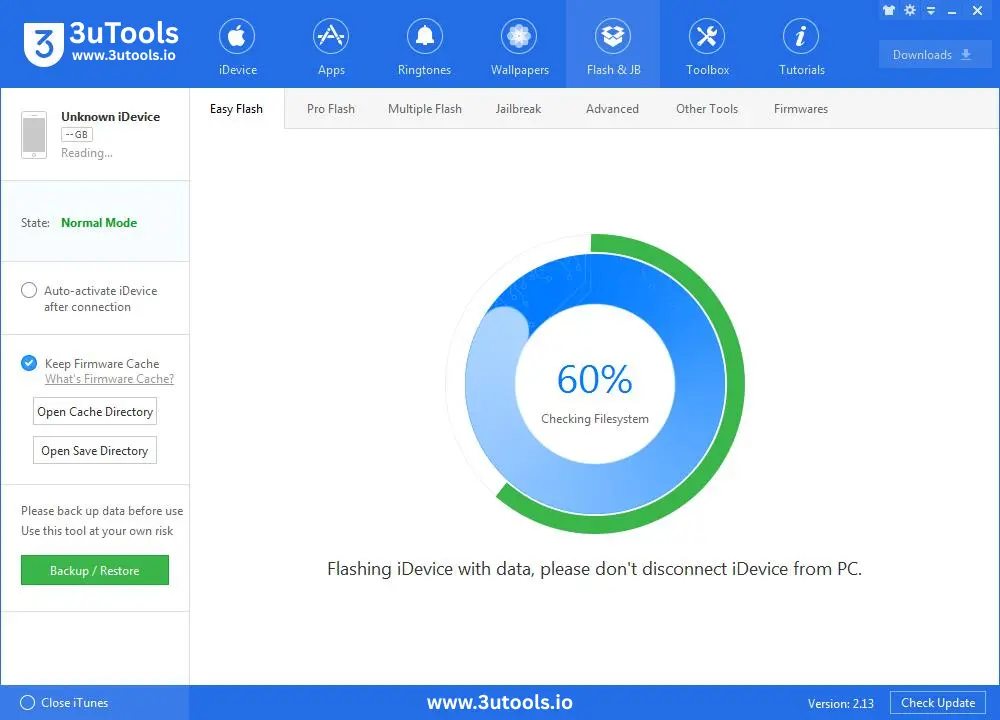
Step 3: During the process of flashing, keep a good connection between your iDevice and your PC. And then wait patiently till the process finishes. (Normally, it takes several minutes)
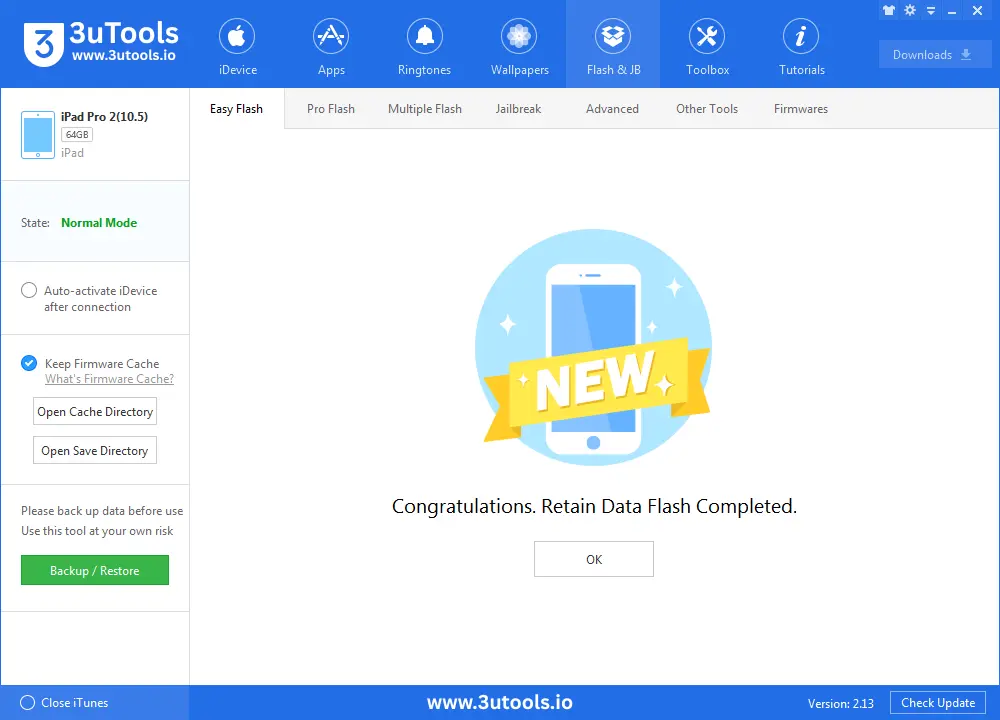
Step 4: Please wait till the flash is completed. And the device will restart after flash.
iOS Downgrade Support Using 3uTools (Older Devices)
Downgrade is only possible on older Apple devices, depending on firmware compatibility:
- iPhone 3GS → iOS 4.1 (no SHSH required)
- iPhone 4 → Downgrade supported with SHSH backups
- iPhone 4s / 5 / 5s / 6 / 6 Plus / 6s / 6s Plus / 7 / 7 Plus / 8/ 8Plus / X / Xr / 11 / 12
- iPad 2 / 3 / 4 / iPad Air 1 & 2
- iPad mini 1 / 2 / 3 / 4
- iPod Touch 5th & 6th generation
Important Information for iOS 17 & iOS 18 Users
For newer devices such as the iPhone 15 series:
- ❌ Downgrading to iOS 11 is not possible
- ✅ Restoring the latest signed iOS is supported
- ✅ Backup, restore, and data management work perfectly with 3uTools